How to Create an Hourly Contractor
Last updated: March 15, 2026
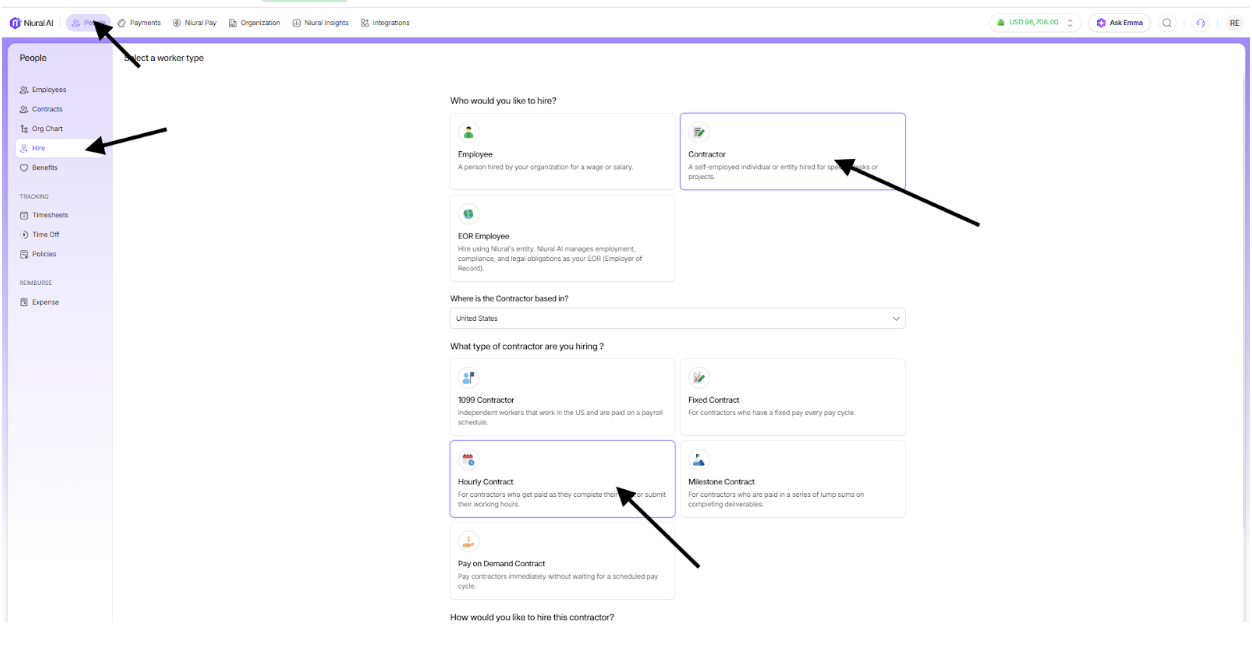
From the homepage, click on ‘People’.
Select ‘Hire’.
Under ‘Contractor’, choose ‘Hourly Contractor’.
You will then have the option to:
Add the contractor using Niural Armor
Or add them as a general hourly contractor
This allows you to select the engagement type that best fits your contractor arrangement.
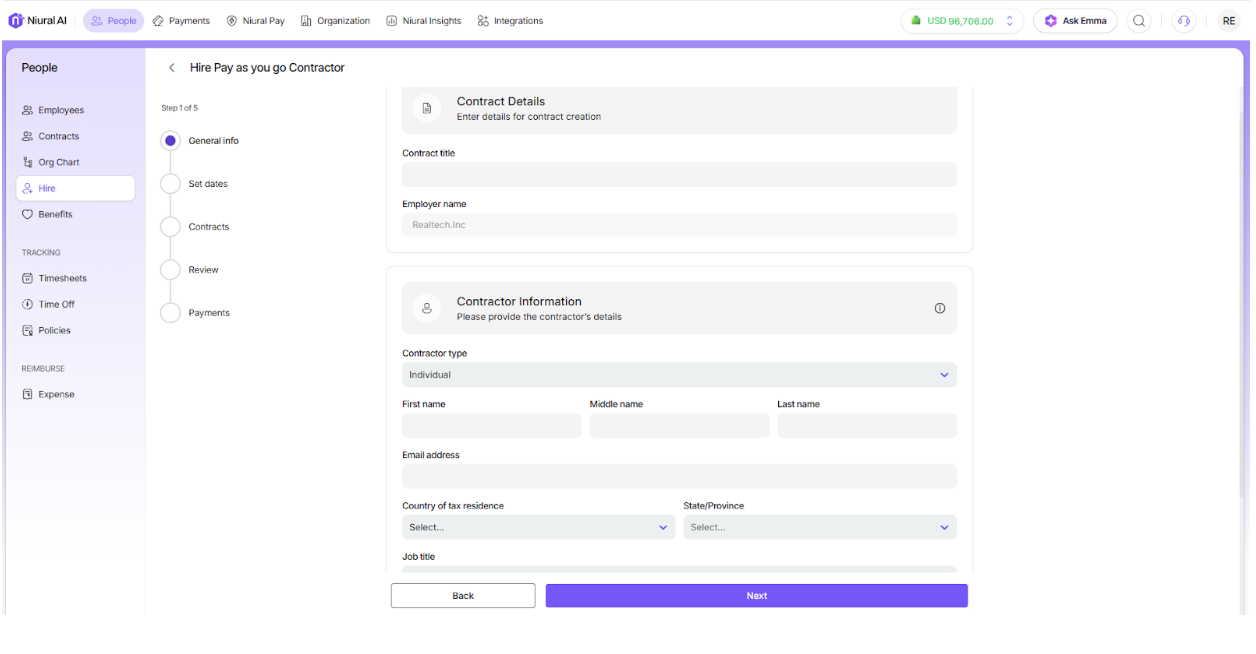
Enter contract information as required.
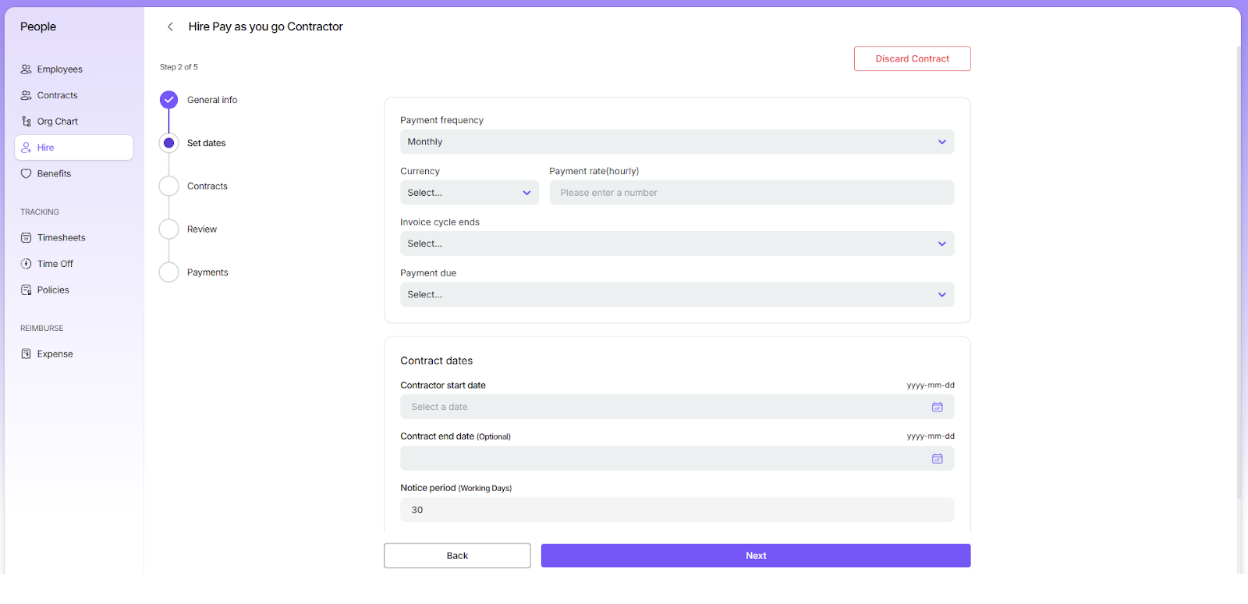
Next, select the payment currency and frequency: Semi-monthly, or Monthly.
Semi-monthly: For semi-monthly payments, select the 15th and the last day of the month or two specific dates as payment due dates.
Monthly: For monthly payments, choose either the last day of the month or any other specific date as the payment due date.
For hourly contracts, enter the payment rate per hour.
Enter the end date for the invoice cycle and the payment due date.
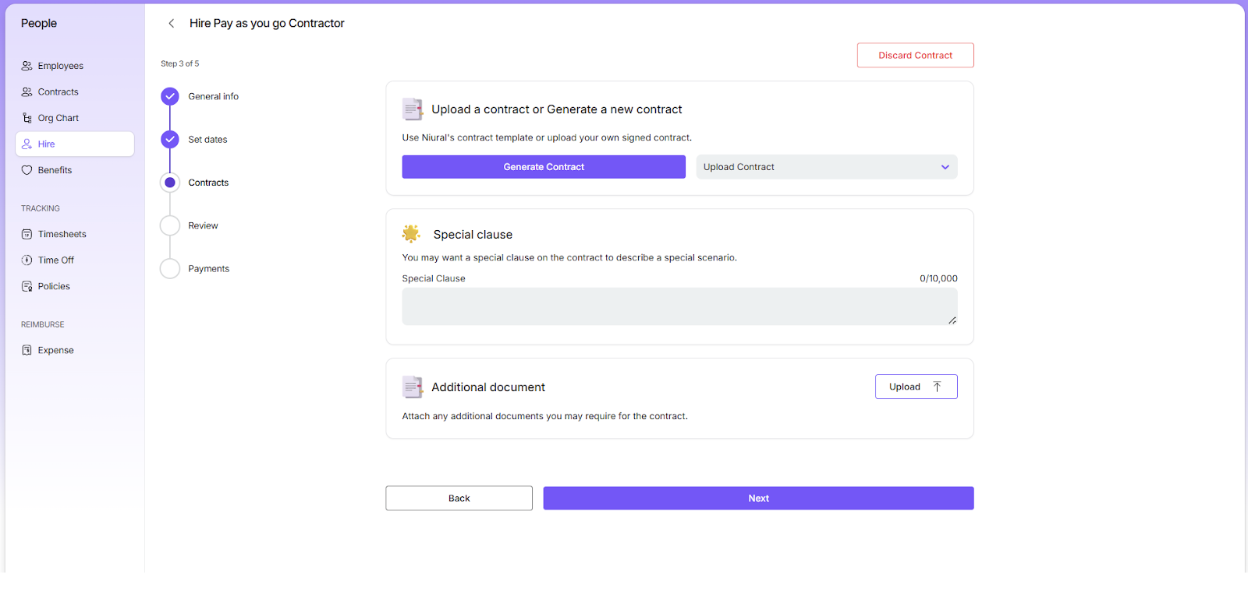
Upload or Generate Contractor Agreement
After setting your payment preferences, the next step is to handle the contractor agreement:
Upload an existing contract – If you already have a compliant contract, you can upload it here.
Generate a contract via Niural – Use our platform to create a fully compliant contract.
For Niural Armor, this is also where you can view the Master Services Agreement (MSA).
You can add special clauses or additional documents in this section as needed.
This ensures that all agreements are complete and compliant before the contractor starts.
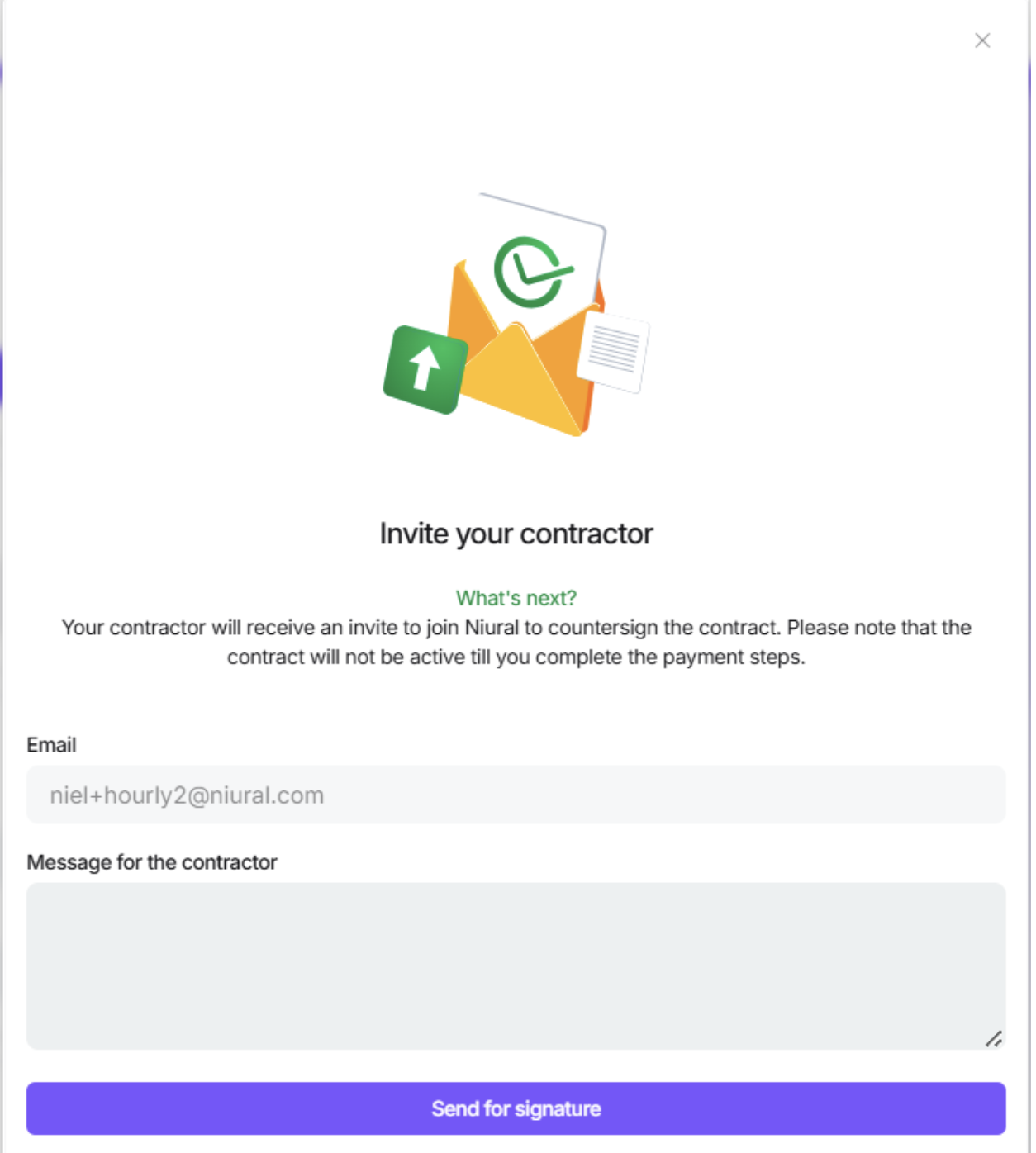
Send for Signature
Send the signed contract over to the contractor so that they can review and sign it.