How to configure Time Off Policies in Niural
Last updated: March 15, 2026
Niural makes it easy to create and manage time off policies that reflect your company’s structure, compliance obligations, and global workforce needs. Follow this step-by-step guide to set up and assign policies tailored to different countries, employment types, and time off categories.
Creating a Time Off Policy
Step 1: Policy Overview
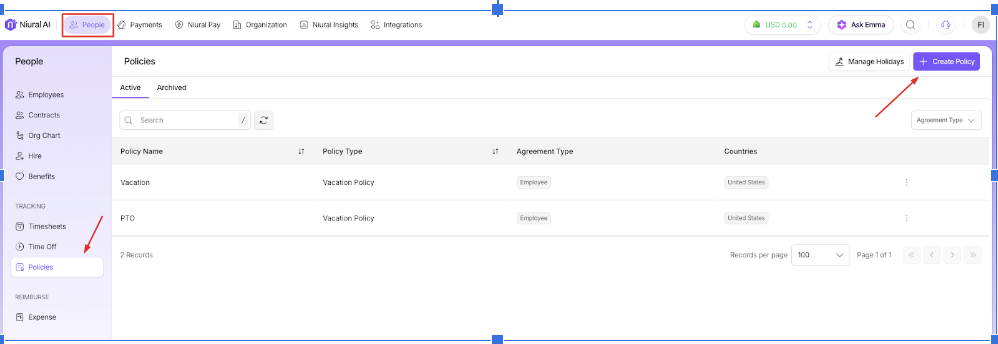
Navigate to People > Policies under Time Tools, then click Create Policy.
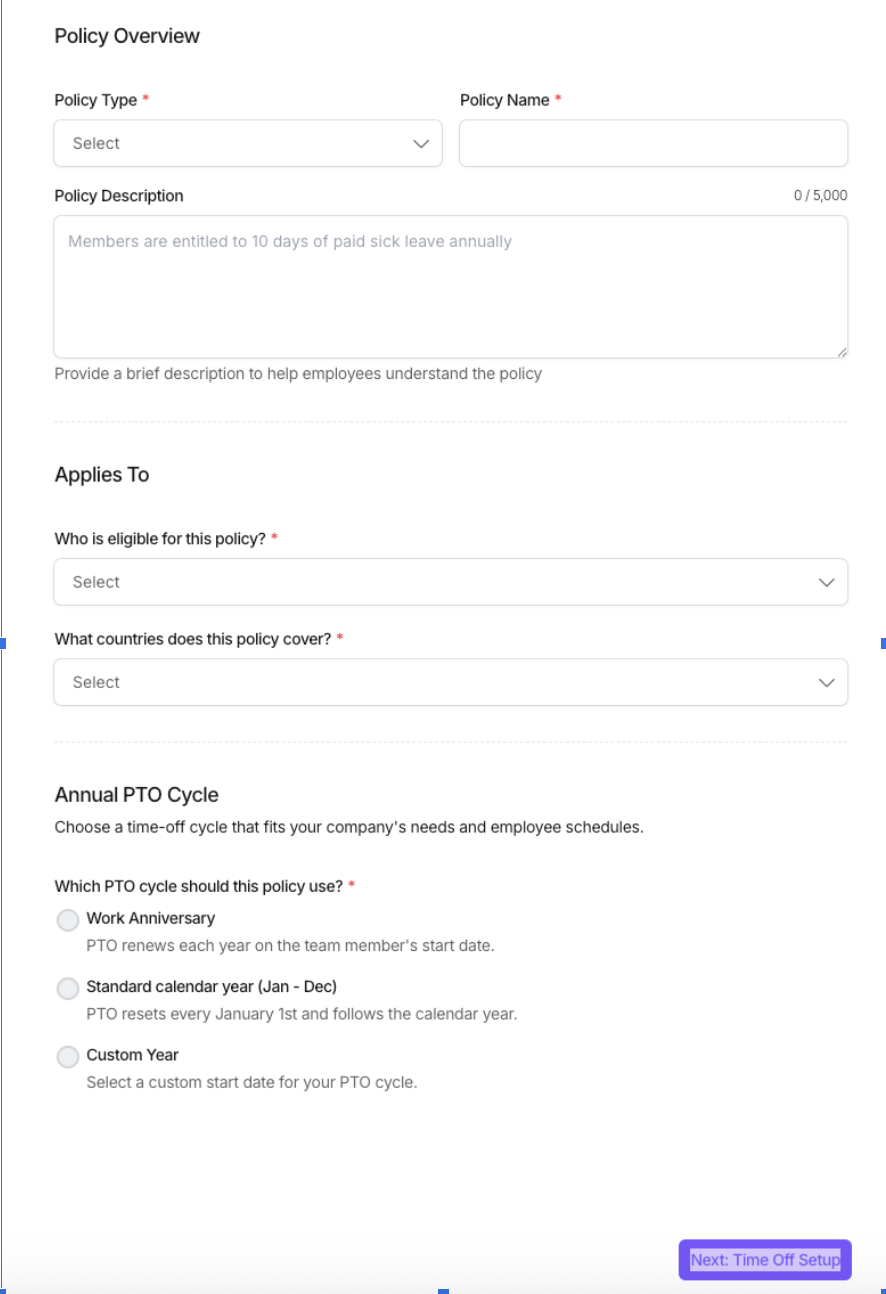
Fill in the core details:
Policy Type: Choose the relevant category (e.g., Vacation, Sick Leave, PTO).
Policy Name: Give your policy a clear title.
Description: Add a short explanation for internal reference (e.g., “10 days paid sick leave per calendar year”).
Applicable Locations: Select one or multiple countries where the policy should apply.
Eligible Worker Types: Choose who this policy covers - W2 Employees, 1099 Contractors, or both.
Annual PTO Cycle:
Work Anniversary: Resets on employee start date.
Calendar Year: Fixed cycle from January to December.
Custom Year: Define your own PTO cycle (e.g., fiscal year).
Step 2: Define Time Off Structure
Set up how the time off works:
Time Off Type: Choose between Paid or Unpaid leave.
Structure:
Limited: Allocate a fixed number of days annually.
Unlimited: No set limit (tracked but not capped).
Step 3: Accrual, Carryover, and Rounding
Configure how balances are calculated:
Mid-Year Joiners:
Prorated: Time off is earned based on the join date.
Full Balance: Grant full entitlement regardless of start date.
Rounding Rules: Specify how leave is rounded—full day, half day, etc.
Carryover: Enable if unused days should roll over into the next year.
Payout on Termination (optional): Choose whether unused time is paid out.
Step 4: Accrual Timing & Leave Request Controls
Decide when accrual starts:
From Day 1 of employment.
After a specified waiting period (e.g., 90 days).
Optional leave request settings:
Allow employees to go into negative balance.
Flag long-duration leave (e.g., over 7 days).
Require advance notice for extended leave.
Enable document upload (e.g., doctor’s note for medical leave).
Click Next: Review Policy to proceed.
Assigning Employees to the Policy
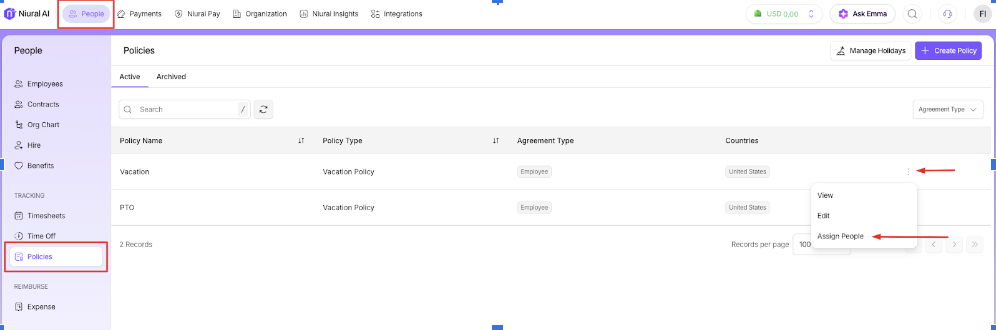
Open the policy from the Policies tab.
Click Assign People.
Filter by name, country, or employment type.
Select individuals and click Add People to assign.