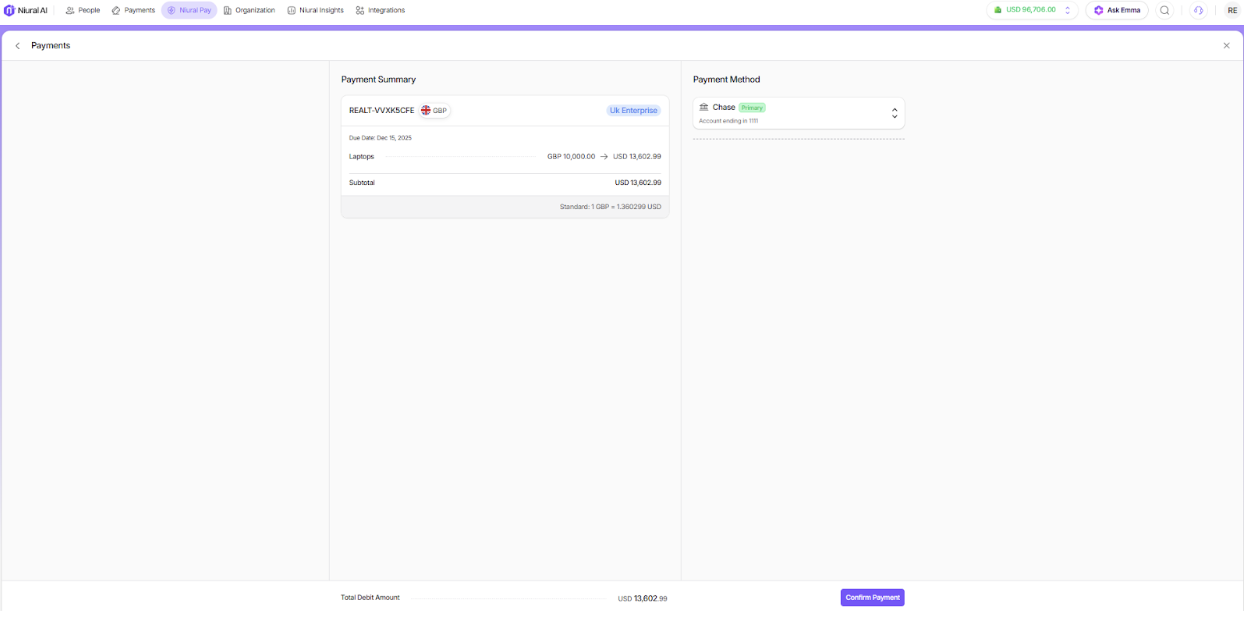
Creating and Making a Bill Payment
Last updated: March 15, 2026
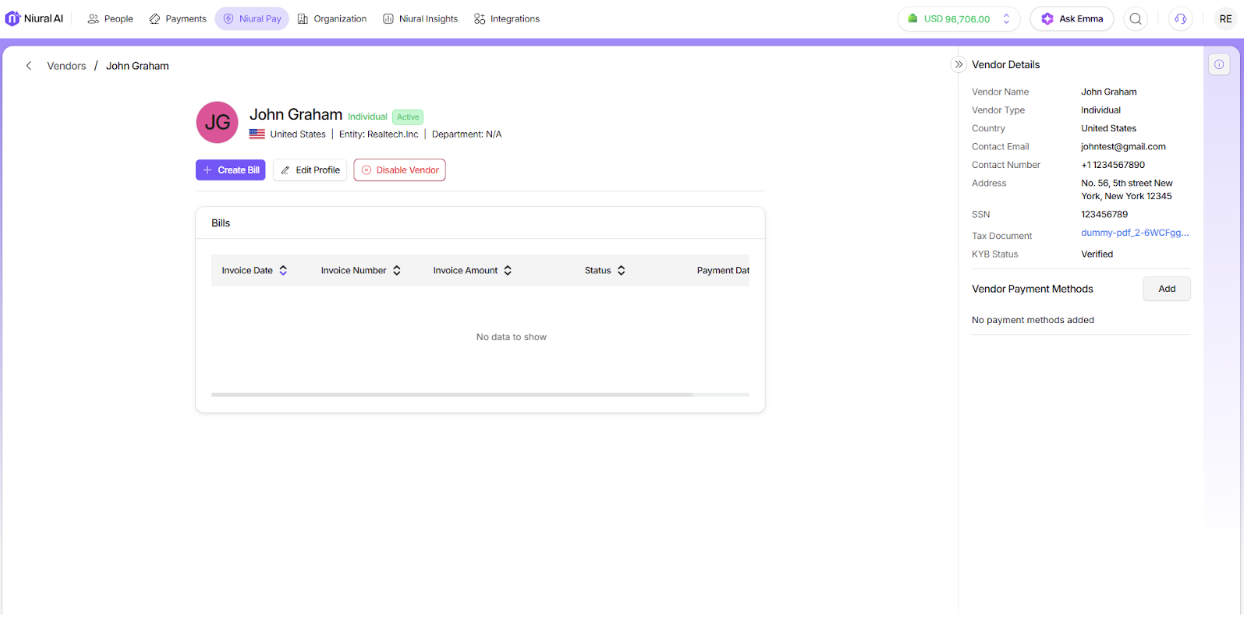
To pay a vendor, you can create a bill from the vendor profile or select Bills from the home page
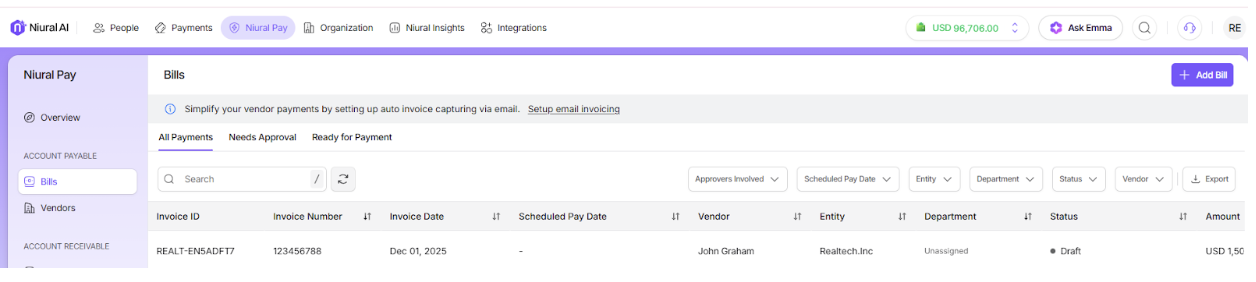
You can choose Add Bill from the Bills section
From the Dropdown, you can choose a previously created Vendor and create a payment for that vendor.
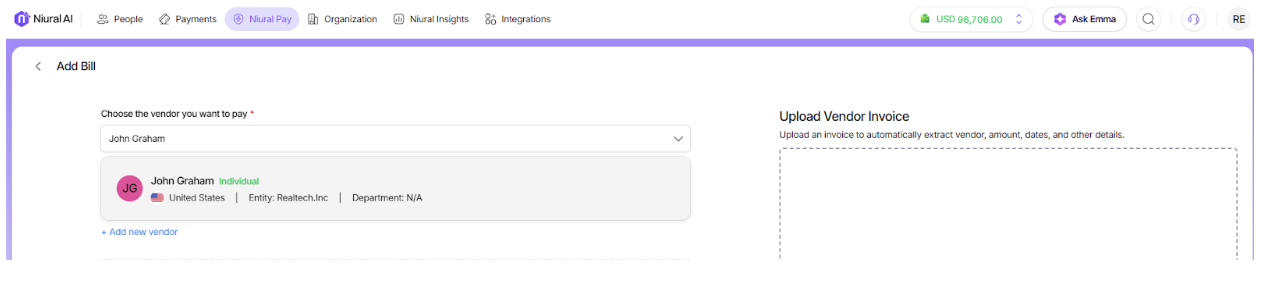
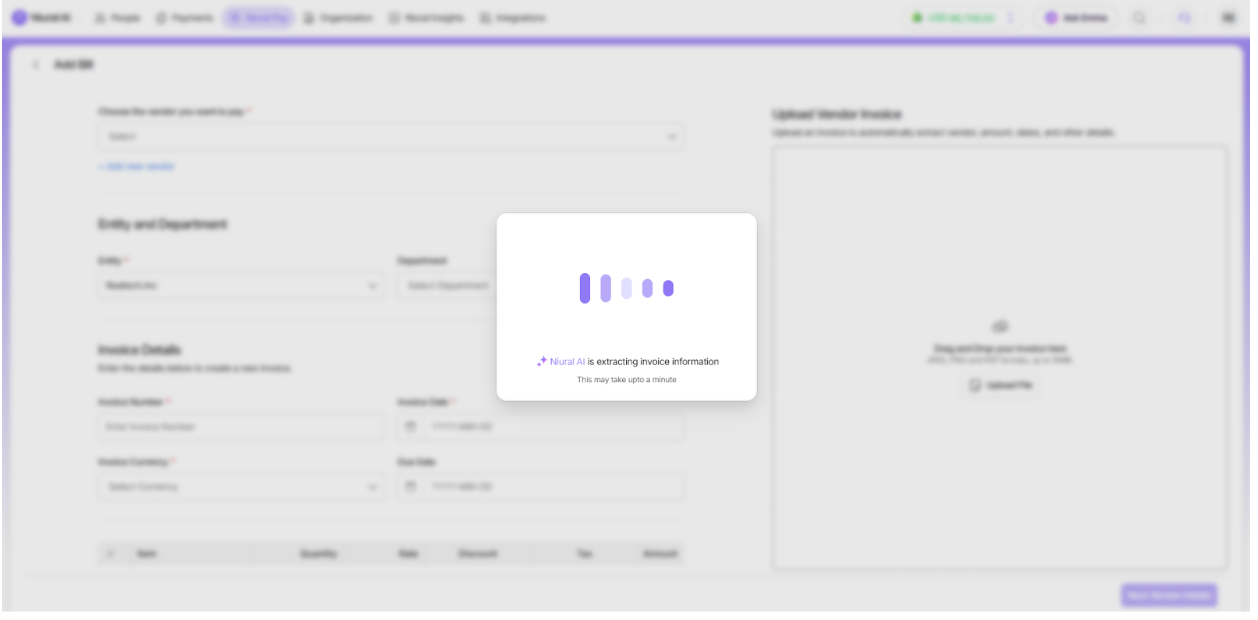
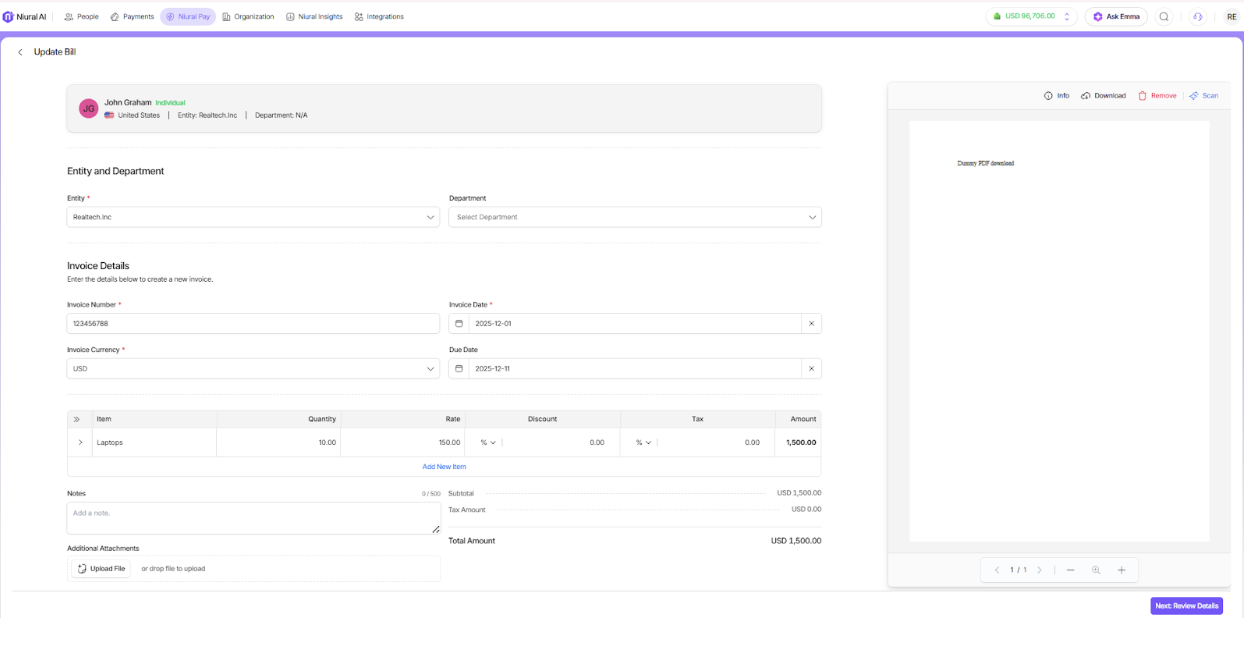
When you upload an invoice, the OCR technology captures the invoice information and populates it for bill creation.
Verify the invoice details and confirm
Provide Vendor contact information, currency and payment method
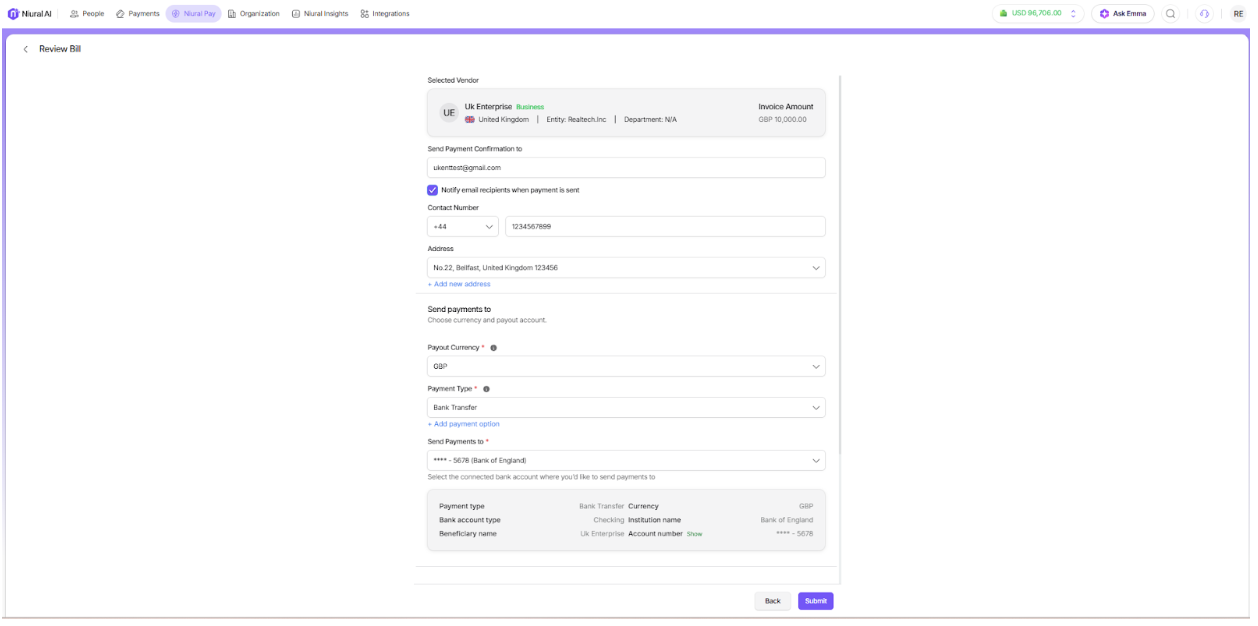
Select the payment date and submit the payment

Choose when to Pay
The invoice is now ready for payment, you can pay immediately by choosing pay now or choose pay later option.
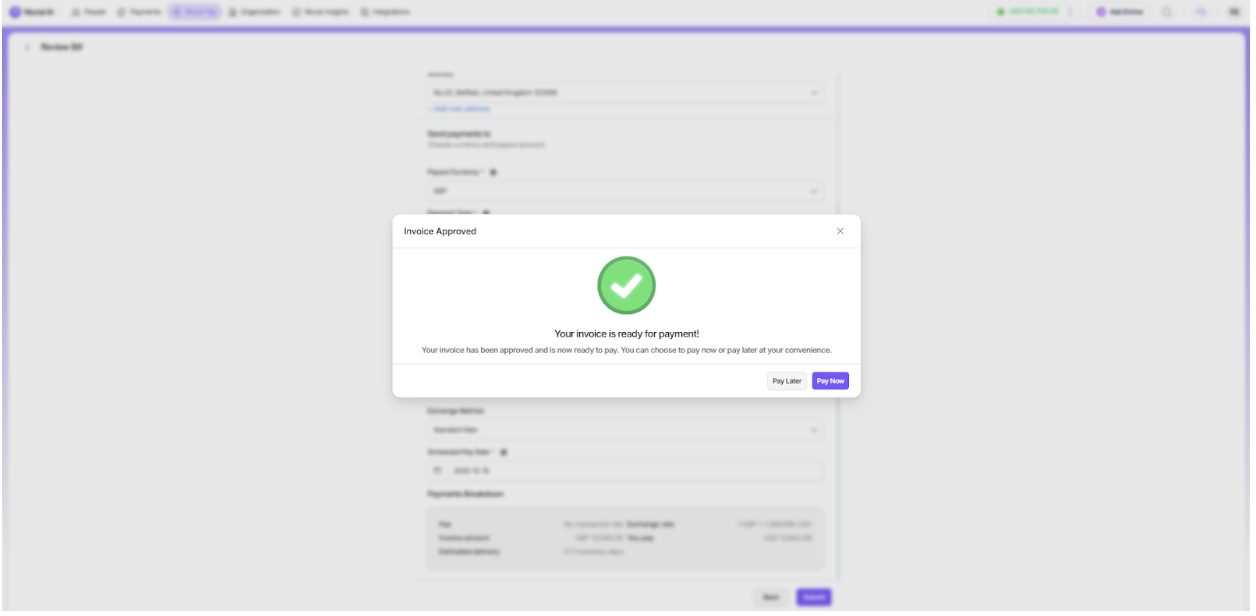
When you select pay later, you can see all pending payments by going to the Bills section and selecting Ready For Payment.

You can select from Bank Transfer, Wire Transfer, Crypto Wallet and Niural Wallet to continue to payments.
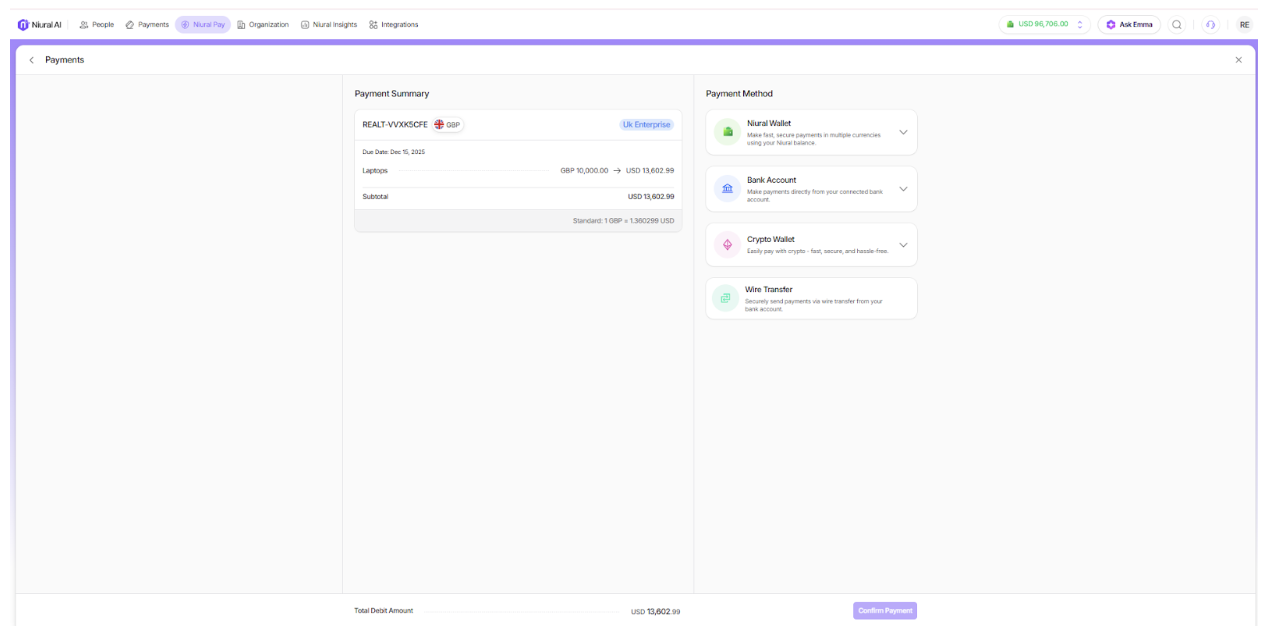
Once you select your payment method, you can confirm this bill payment.